Documentation•
Updated Jul 3, 2026
Getting Started & Installation
Install FLOW from the Snowflake Marketplace
- Sign in to your Snowflake Snowsight account.
- From the left navigation menu, select Marketplace → Snowflake Marketplace.
- In the Marketplace search bar, search for FLOW by Coridors.
- Open the FLOW by Coridors listing.
- Review the application details, requested permissions, and access requirements.
- Click Get.
- Select the warehouse that will be used for the installation.
- Click Get to begin the installation.
- Once the installation is complete, click Open to launch the application or Done to finish.
Note: You must use a role with the required privileges (such as ACCOUNTADMIN) to install Marketplace applications.
Select Your Subscription Tier
When you first open FLOW, you’ll be asked to choose a subscription tier before setting up a connection. Your tier determines how many connectors you can activate.
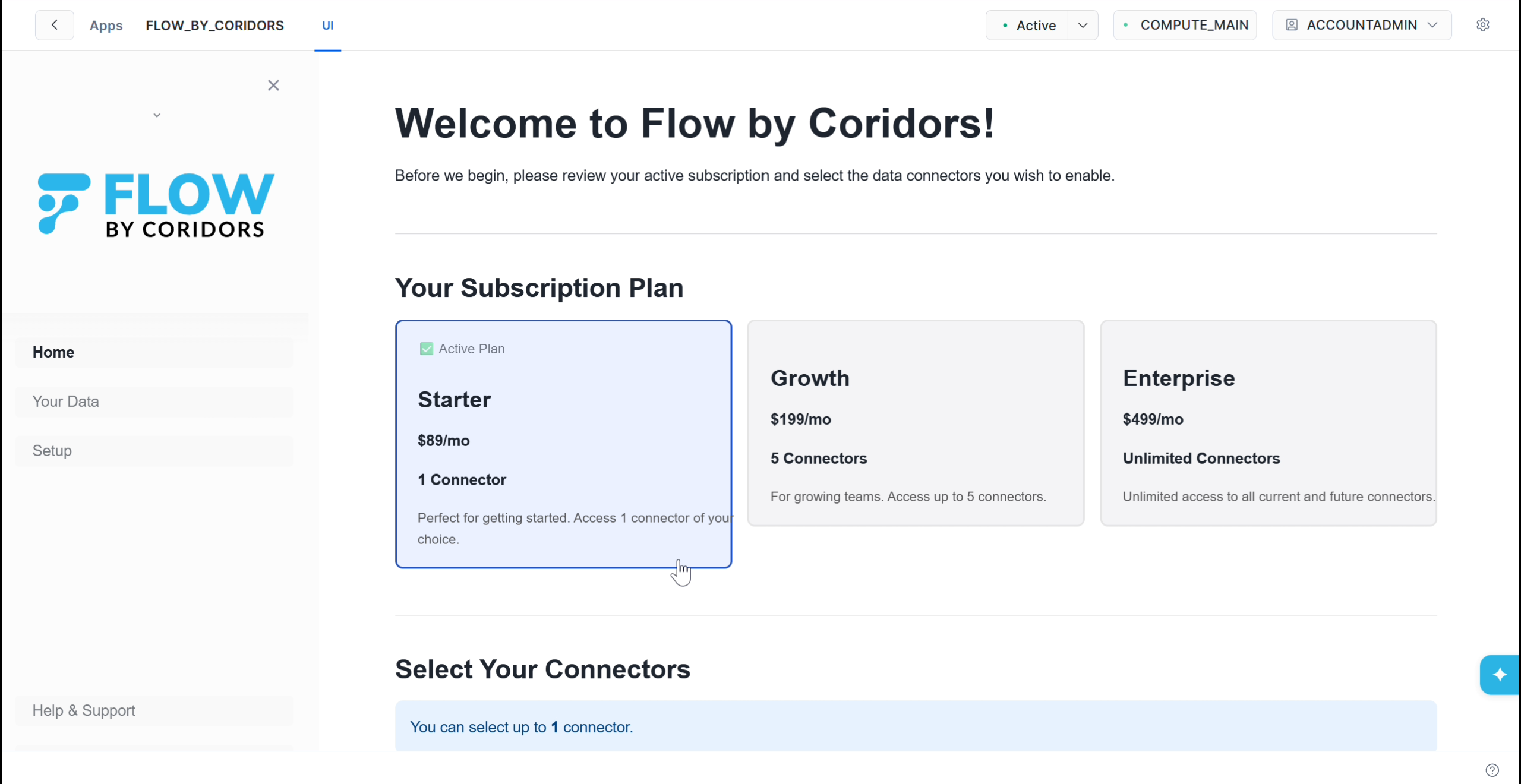
- On the Select Plan screen, review the available tiers:
- Starter: 1 connector
- Growth: up to 5 connectors (you choose which)
- Enterprise: all connectors
- Select the tier that matches your needs.
- Choose the connector you want to activate. (Salesforce is currently available; more connectors are coming soon.)
- Confirm your selection to continue to the setup wizard.
Next Step: Select the platform you want to set up
- Salesforce: Salesforce Setup Guide
- More platforms coming soon. If you want a specific connector or platform, let us know!